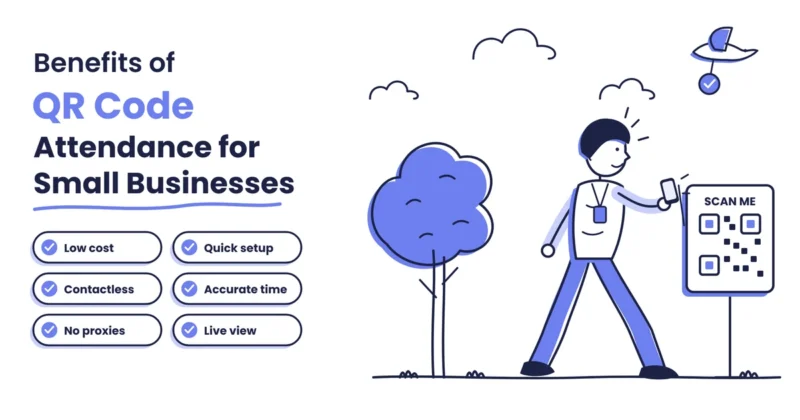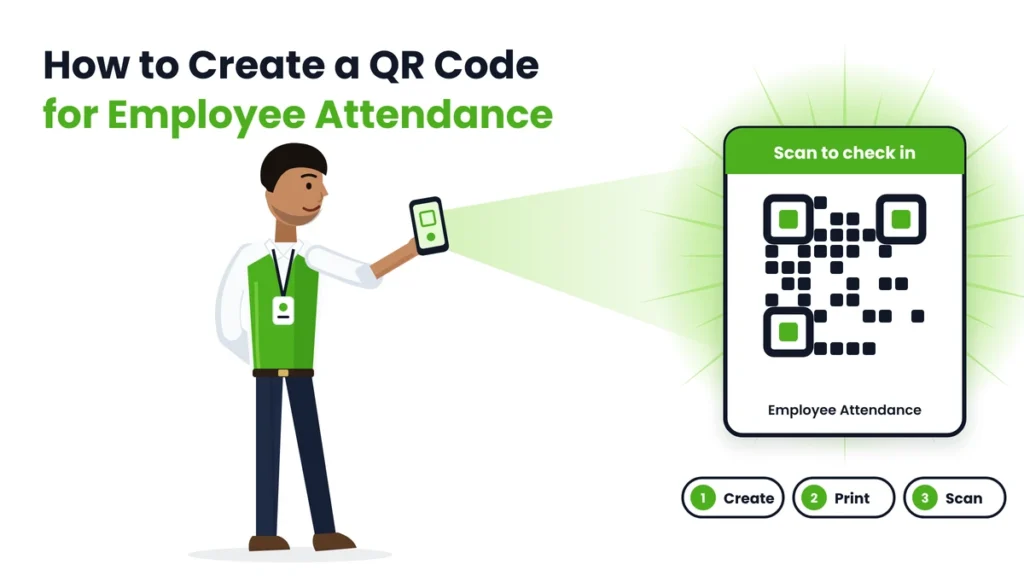
Creating a QR code for employee attendance takes less time than most people expect. With the right setup, your team can start scanning in and out within a day, without buying any machine.
The tricky part isn’t making the QR code itself. Anyone can generate a QR code in seconds. The real work is making sure the code records the right person, at the right place and the right time, and that the data turns into usable attendance at the end of the month.
This guide shows two ways to create a QR code for employee attendance: the quick do-it-yourself method using a free form and the proper method using an attendance app. It also covers where to place the code, how to stop misuse, and the mistakes to avoid.
Quick answer: To create a QR code for employee attendance, the simplest reliable way is to use an attendance app. Add your business and employees, create a location, and the app generates a QR code for that location. Print it and place it at the entrance. Employees scan it with the app to check in and out, and the app records time, location, and identity. A free alternative is to make a Google Form, turn its link into a QR code, and print it, but it can’t verify who is scanning or calculate attendance for you.
What Is a QR Code for Employee Attendance?
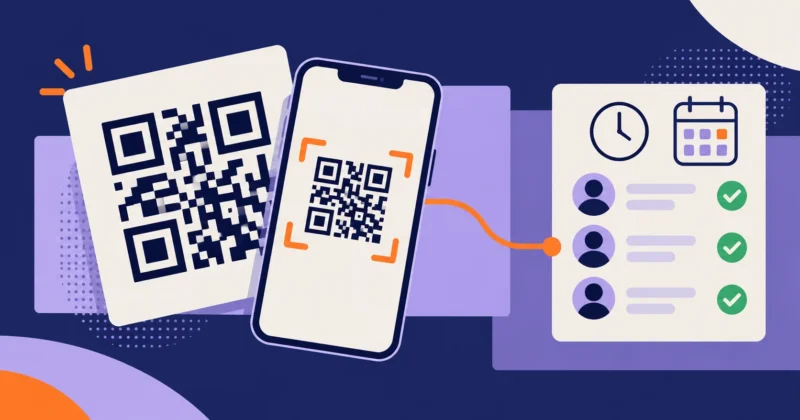
A QR code for employee attendance is a square code, printed or shown on a screen at the workplace, that employees scan with their phone to mark check-in or check-out. The scan opens a form or an app, which saves the time and other details.
There are two common types:
- A link QR code that opens a web form. Anyone with a phone camera can scan it.
- An app-based QR code that only works inside an attendance app, where each employee is logged in to their own account.
Both look the same on the wall. The difference is in what happens after the scan. You can learn more about how this works in our QR code attendance guides.
Two Ways to Create a QR Code for Employee Attendance
- Method 1, free form and QR generator: free and quick to set up, but anyone can type any name, there’s no location or selfie check, and late marks, leave and salary reports must be worked out by hand. Best for a short trial or a tiny team.
- Method 2, attendance app: usually a monthly subscription, but each employee logs in to their own account, location and selfie checks are available, and late marks, leave, holidays and salary reports are calculated automatically. Best for any business that wants reliable attendance.
Method 1: Create a QR Code for Employee Attendance With a Free Form
This method is useful if you want to test the idea before choosing an app.
Step 1: Create a Simple Attendance Form
Use a free form tool such as Google Forms. Add these fields:
- Employee name or employee ID (use a dropdown list so names are typed the same way every time).
- Check-in or check-out as a choice.
- Branch or location, if you have more than one.
The form records the date and time of every response automatically.
Step 2: Connect the Form to a Spreadsheet
Link the form responses to a spreadsheet. Every scan will add a new row with the timestamp, name and type of entry.
Step 3: Turn the Form Link Into a QR Code
Copy the form’s share link. Paste it into any free QR code generator, or use your browser’s built-in option to create a QR code for a page. Download the QR code as an image.
Step 4: Print and Place the QR Code
Print the QR code clearly, add a short line like “Scan to check in and check out”, and stick it near the staff entrance.
Step 5: Total Attendance by Hand
At month end, use the spreadsheet to count days present, late arrivals and half days. This part needs formulas or manual work.
Limits of the Free Method
A free form is a good starting point, but it has real gaps:
- Anyone can enter any name, so proxy attendance is easy.
- Someone can scan from home using a photo of the code.
- There’s no location or selfie check.
- Late marks, half days, leave and holidays have to be worked out by hand.
- Data is easy to edit in the spreadsheet, which reduces trust.
That’s why most businesses use this method only for a short trial.
Method 2: Create a QR Code for Employee Attendance With an Attendance App
This is the method that works for daily use.
Step 1: Choose an Attendance App
Pick an app that supports QR check-in, location checks, leave, shifts and reports. Make sure it works well on both Android and iPhone.
Step 2: Set Up Your Business and Rules
Add your business name and set the basics:
- Working hours and shifts.
- Grace time for late arrivals.
- Half-day rules.
- Weekly offs and holidays.
- Leave types.
Step 3: Add Your Employees
Add each employee with their name, phone number, employee ID and shift. Each person gets their own login, which is what makes app-based QR attendance far more reliable than a form.
Step 4: Create a Location and Generate the QR Code
Add your workplace as a location. Most apps then generate a QR code for that location automatically. If you have several branches or sites, create a location and QR code for each one.
Step 5: Turn On Location and Identity Checks
To make your QR code for employee attendance hard to misuse:
- Location check: scans count only when the phone is at the workplace.
- Selfie check: a quick photo confirms who is scanning.
- Dynamic QR code: if your app supports it, the code changes regularly so old photos stop working.
Step 6: Print and Place the Code
Download the QR code from the app, print it clearly and place it at the staff entrance.
Step 7: Invite Employees and Test
Send employees the app link, ask them to log in and do a test scan. Check that each test shows up under the right name, at the right time and location.
Where to Place Your QR Code for Employee Attendance
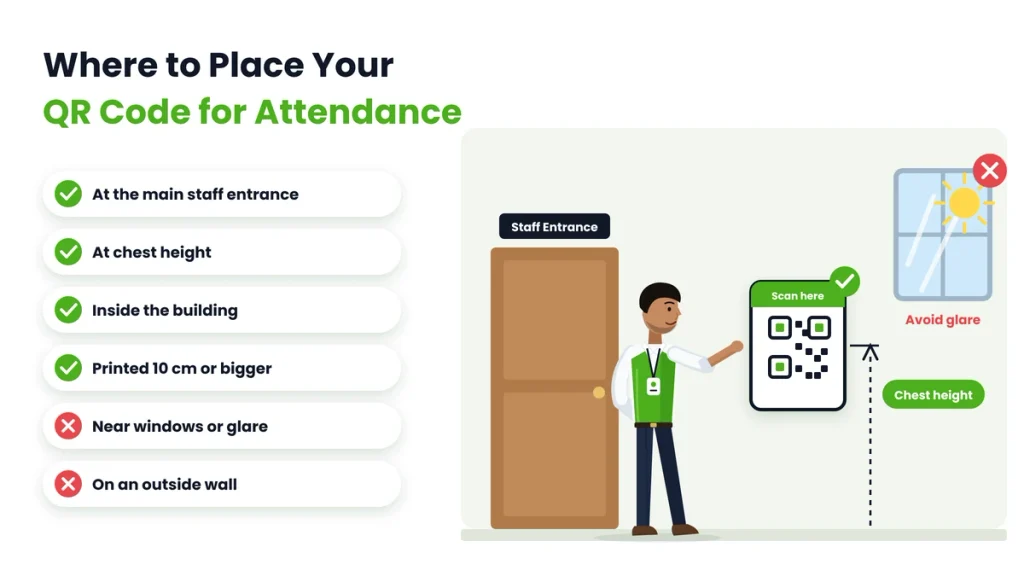
Placement makes a big difference.
- At the staff entrance, where everyone passes naturally.
- At chest height, so it’s easy to scan without bending.
- Away from glare, such as direct sunlight or shiny glass.
- Inside the workplace, not on an outside wall where it can be scanned from the road.
- On a hard surface or in a frame, so it doesn’t tear or fold.
- One per entrance or branch, if staff use more than one door.
For field staff, place a QR code at each client site or project location, or let them check in with the location instead.
How to Print a QR Code for Employee Attendance
A few printing tips help scans work every time:
- Print at least 10 cm wide so phones can read it from a short distance.
- Use dark code on a white background. Avoid colorful or faded prints.
- Laminate it or put it in a plastic sleeve to protect it from dust and water.
- Add a clear line such as “Scan here to check in and out” and your business name.
- Keep a spare printed copy in case the original gets damaged.
How to Stop Misuse of the QR Code
Any QR code for employee attendance can be photographed and shared. These steps keep it honest:
- Use an app, not an open form, so each scan is tied to a logged-in employee.
- Turn on location checks so scans from home don’t count.
- Use a selfie where proxy attendance has been a problem.
- Choose a dynamic QR code that refreshes regularly.
- Review the daily report for unusual patterns, such as two people always scanning at the same second.
- Explain the rules clearly so everyone knows scans are checked.
What Your Attendance QR Code Should Record
Before you create a QR code for employee attendance, decide what each scan should capture. At minimum, every scan should save:
- Who scanned, through the employee’s own login or ID.
- The date and exact time of the scan.
- Check-in or check-out, so working hours can be worked out.
- The location or branch, especially if you have more than one site.
Optional details such as a selfie, the device used or a short note can help in businesses where proxy attendance has been a problem. Keep it simple though. The fewer steps employees need to take, the more consistently they’ll scan.
Static vs Dynamic QR Codes in Brief
A static QR code never changes. It’s easy to print and works well when combined with personal logins and location checks.
A dynamic QR code changes every few seconds or minutes, usually on a screen at the entrance. A photo of it stops working quickly, which makes it the stronger option at busy gates. For most small businesses, a static QR code for employee attendance plus location checks is enough to start.
QR Codes for Field Staff and Multiple Sites
If your team works at different places, plan your codes around how they move:
- Branches and stores: create one QR code for each branch so reports show where people worked.
- Client sites: place a small laminated QR code at regular client locations for technicians or security staff.
- Project sites: put a code at the site office for construction or installation teams.
- Staff with no fixed site: let sales or delivery staff check in using their phone’s location instead of a QR code.
This way every employee has a simple, reliable way to mark attendance, wherever they work.
Checklist Before You Go Live
- Rules for shifts, grace time, half days, leave and holidays are set.
- Every employee has a working login.
- A QR code for employee attendance is printed for each entrance or branch.
- Location and, if needed, selfie checks are turned on.
- Each employee has done one successful test scan.
- A correction process for missed scans is shared with the team.
Rolling Out QR Code Attendance to Your Team
A smooth rollout helps people adopt the new system quickly:
- Announce the change a few days ahead and explain why.
- Share a short guide with screenshots on how to scan in and out.
- Run a test day where everyone scans and you fix problems.
- Keep the old register for one week alongside the QR code, then stop it.
- Allow correction requests for genuine missed scans.
- Check the daily report every morning during the first month.
For more on building daily attendance habits, see our attendance management guides.
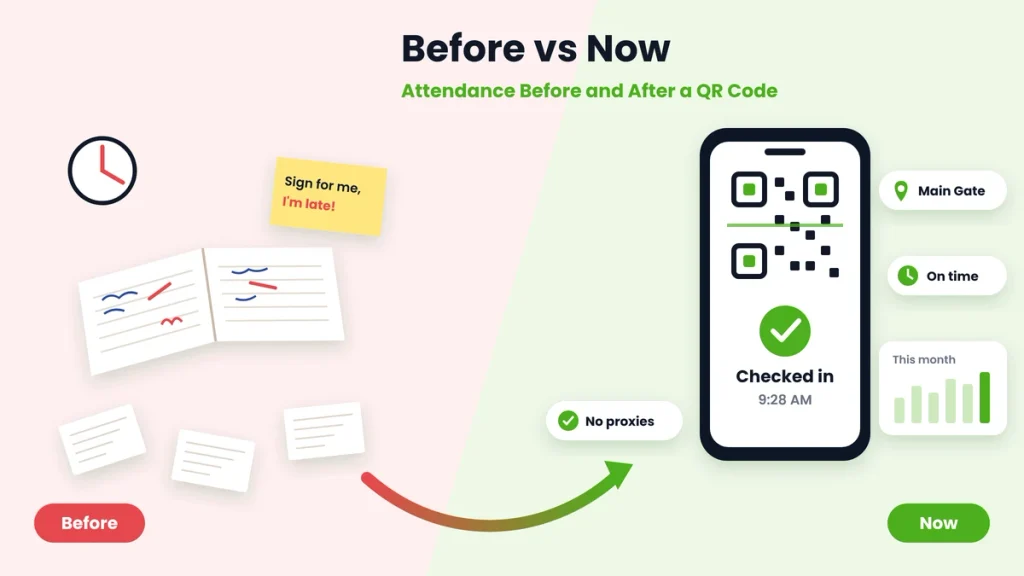
Before vs Now: Attendance Before and After a QR Code
| Area | Before (register or WhatsApp) | Now (QR code for employee attendance) |
|---|---|---|
| Recording time | Written by hand, often rounded off | Exact time saved on every scan |
| Proxy entries | Easy to sign for a colleague | Personal login, location and selfie checks |
| Location | Unknown | Saved with each scan |
| Multiple branches | Separate registers | One dashboard for all |
| Late marks | Noticed only if someone is watching | Applied automatically |
| Leave | Verbal or on paper | Applied and approved in the app |
| Owner visibility | Only when at the workplace | Real time from a phone |
| Salary reports | Hours of counting | Ready at month end |
| Disputes | Frequent | Rare, records are clear |
A simple QR code for employee attendance replaces a lot of manual work.
Common Mistakes When Creating an Attendance QR Code
- Using an open form where anyone can enter any name.
- Placing the code outside the building or near a window facing the street.
- Printing it too small or in light colours that phones can’t read.
- Leaving location checks turned off.
- Not testing every employee’s login before going live.
- Skipping leave and holiday settings, which causes wrong absences.
- Forgetting to create separate codes for each branch.
Which Method Should You Choose?
If you just want to try the idea for a few days, a free form and QR generator is fine. If you want attendance you can rely on for salaries, without proxy entries and manual counting, use an attendance app to create your QR code for employee attendance.
Most small and growing businesses start with an app straight away, because the time saved at month end is worth far more than the subscription. Our leave and holiday management guides explain how leave fits into the same system.
Final Thoughts
Making a QR code is easy. Making a QR code for employee attendance that you can trust takes a little more care: personal logins, location checks, clear placement and simple rules.
A free form can help you test the idea. An attendance app turns it into a daily system that records the right person at the right place and gives you clean reports for salary. Set it up once, explain it to your team and let the QR code do the work.
Create Your Attendance QR Code With Attendi
Attendi is an attendance management platform built for Indian businesses. You can set up QR code attendance for each location, and employees check in from their own phone. Attendi also supports face recognition and field attendance with location, so every type of employee is covered. Check-ins sync in real time to a central dashboard, custom settings handle shifts, grace time, leave and holidays, and working hours flow into payroll. Explore Attendi and set up your first attendance QR code today.
Frequently Asked Questions
How do I create a QR code for employee attendance?
The reliable way is to use an attendance app. Add your business and employees, create a location, and the app generates a QR code. Print it and place it at the entrance so employees can scan in and out.
Can I create a QR code for attendance for free?
Yes. You can make a Google Form, turn its link into a QR code with a free generator and print it. It works for a short trial but can’t stop proxy entries or calculate attendance.
Can employees misuse an attendance QR code?
They can share a photo of an open QR code. Using an attendance app with personal logins, location checks, selfies and dynamic QR codes prevents most misuse.
Where should I place the attendance QR code?
At the staff entrance, at chest height, away from glare and inside the building. Use one code per entrance or branch.
What size should an attendance QR code be?
At least 10 cm wide, printed in dark colour on a white background, so phones can read it quickly.
Do employees need an app to scan the QR code?
For a form-based QR code, a phone camera is enough. For app-based QR attendance, employees need the attendance app and their own login.
Can I use one QR code for multiple branches?
It’s better to create one QR code per branch or location, so reports show where each employee checked in.