A biometric attendance machine is only as good as its registrations. If a fingerprint was scanned in a hurry, if a face was captured in poor light, or if an employee ID was typed wrongly, the machine will struggle every single day after that. Most “the machine doesn’t recognize me” complaints go back to the few minutes spent at registration.
The good news is that registering employees properly is not difficult. It needs a little preparation, a clear process, and a few simple habits. This guide walks you through how to register employees on a biometric attendance machine, for both fingerprint and face recognition, along with what to do for new joiners, people who leave, and employees who are hard to register.
Quick answer: To register employees on a biometric attendance machine, first prepare a clean employee list with matching IDs and collect consent. Then, on the device or software, add each employee with their ID and name, and scan their fingerprint (at least two fingers, pressed flat, three or more times each) or capture their face (in normal light, looking straight at the camera, with their usual glasses or head covering). Save the record, test it with a live punch, and confirm it shows in the attendance software under the right person.
Why Proper Registration Matters
Registration is the base that every daily punch is built on. A careful registration means:
- Faster punches: the machine recognizes people in a second or two.
- Fewer failed scans: less frustration at the door and shorter queues.
- Correct records: punches link to the right employee, so attendance and salary are right.
- Fewer complaints: employees trust a system that works for them every day.
A rushed registration does the opposite. The machine keeps asking people to try again, queues build up, and managers start marking attendance by hand. All of that can be avoided with a few extra minutes per person at the start.
Before vs Now: Rushed Registration vs Proper Registration
| Area | Before (rushed registration) | Now (proper registration) |
|---|---|---|
| Employee list | IDs typed by hand on the machine | Clean list imported with matching IDs |
| Fingerprints | One finger, scanned once, tip only | Two fingers, pressed flat, scanned several times |
| Face capture | Taken near a bright window | Taken in normal working light |
| Consent | Not explained | Explained and recorded |
| Testing | Not done | Live test punch for every employee |
| New joiners | Registered weeks later | Registered on day one |
| Leavers | Left active on the device | Removed on the last working day |
| Daily scans | Frequent “try again” | Quick and reliable |
| Records | Punches under wrong names | Punches under the right person |
What You Need Before You Start
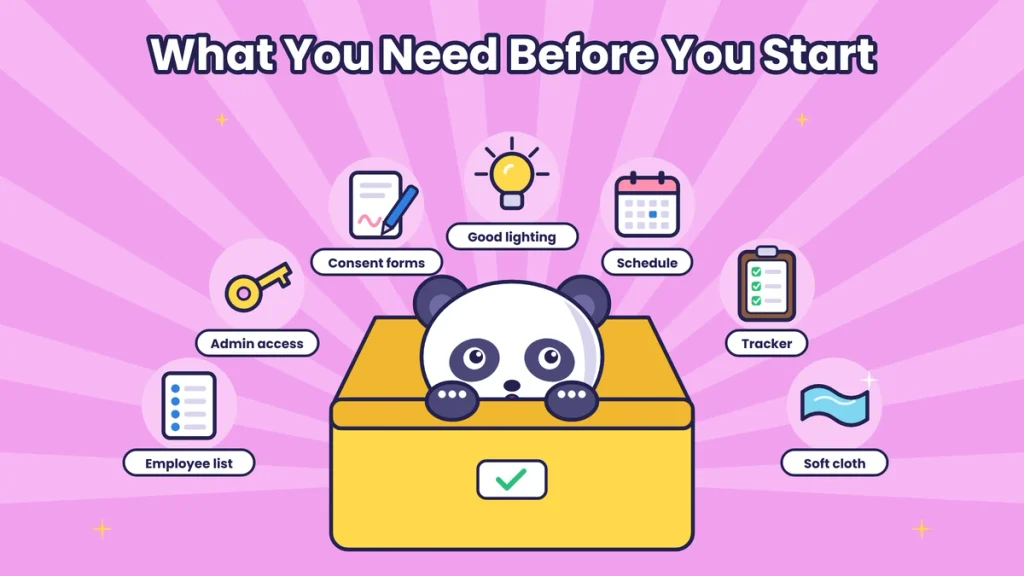
Get these ready before registration day:
- An up-to-date employee list with employee ID, full name, department, branch, and shift. Keep it in Excel or your HR software.
- Admin access to the biometric machine and the attendance software.
- A consent process, on paper or digital, explaining what biometric data is collected and why.
- A quiet, well-lit spot near the machine, or the machine itself if registration happens on the device.
- A simple schedule, so departments come in batches instead of all at once.
- A tracker to tick off who is registered and who is still pending.
- Tissues or a soft cloth to keep fingers and the sensor clean.
Step 1: Prepare a Clean Employee List
The most common registration problem has nothing to do with fingerprints or faces. It’s mismatched IDs.
- Give every employee one unique ID and use that same ID everywhere: on the machine, in the attendance software, and in payroll.
- Check for duplicates, such as two people with the same ID or one person added twice.
- Use full names as they appear in HR records, so reports are easy to read.
- Import the list into the attendance software instead of typing each person by hand. Most systems can then push the list to the machine.
If the ID on the machine doesn’t match the ID in the software, punches will either go missing or land under the wrong person. Getting this right first saves hours later. Our attendance management guides explain how to keep employee records clean.
Step 2: Explain and Collect Consent
Biometric data is personal data, so employees should know what’s happening before they’re registered.
- Explain what is collected: usually a fingerprint template or face data, not a photo album.
- Explain why: only for marking attendance.
- Explain how it’s protected: who can access it, where it’s stored, and that it’s deleted when they leave.
- Take consent before registration, on a form or through a digital process.
- Offer an alternative where appropriate for people who can’t or don’t want to use biometrics.
This is general guidance, not legal advice. Check the current requirements under India’s data protection law with your legal adviser.
Step 3: Add the Employee on the Machine or Software
Depending on your system, you’ll add the employee in one of two ways:
- From the software: the employee is already in the list you imported. Their record is sent to the machine, and you only need to capture their fingerprint or face.
- On the machine itself: go to the user or employee menu, choose “Add User” or similar, and enter the employee ID exactly as it appears in your software. Add the name if the machine supports it.
Either way, double-check the ID before moving on.
Step 4: Register the Fingerprint
Fingerprint registration takes about a minute per person if done right.
- Clean the sensor with a soft, dry cloth.
- Ask the employee to wipe their hands. Fingers should be clean and dry, but not too dry. If very dry, a light rub of the fingertips helps.
- Choose the finger. The index or middle finger usually works best. Avoid the thumb unless needed.
- Press flat in the center. The finger should cover the sensor fully, with the middle of the fingerprint at the center, not just the tip.
- Hold still for a moment until the machine confirms.
- Repeat as asked. Most machines take three scans. Shift the finger very slightly each time so the machine learns a little more of the print.
- Register a second finger, ideally on the other hand. If one finger gets cut or bandaged, the other still works.
- Save the record.
Tips for better fingerprint registration:
- Don’t press too hard. A firm, flat press is enough.
- Avoid registering right after someone has washed their hands with cold water or has been lifting heavy items.
- For people whose prints are worn from manual work, try different fingers. If none work reliably, use face recognition or another method instead.
Step 5: Register the Face
Face registration is quick, but conditions matter.
- Check the light. Light should fall on the face from the front or above. Avoid bright windows or doors behind the person.
- Ask the employee to stand at the marked spot, usually 50 to 80 cm from the camera, depending on the machine.
- Look straight at the camera with a normal expression.
- Keep their usual look. If they wear glasses or a head covering every day, keep it on. Remove caps, sunglasses, and masks.
- Hold still until the machine confirms the capture.
- Save the record.
Tips for better face registration:
- Register in the same place and light where employees will punch every day.
- Keep hair away from the eyes during capture.
- If someone changes their appearance a lot later, such as with a new beard, new glasses, or a very different hairstyle, re-register them.
Step 6: Add a Backup Method if Needed
Some machines also support cards or PINs. These can help as a backup, but use them carefully:
- A card can be lent to someone else, so it doesn’t stop proxy attendance.
- A PIN can be shared in the same way.
- Use them only for people who genuinely can’t use fingerprints or faces, and review those records regularly.
For field staff who never come to a fixed machine, mobile attendance with face check-in and location is usually a better option than a card.
Step 7: Test Every Registration
Never assume a registration worked just because the machine said “saved.”
- Ask the employee to do a test punch right away, using the same finger or standing the same way.
- Check that the machine shows the correct name or ID.
- Open the attendance software and confirm the punch appears under the right employee.
- If the test fails or is slow, delete and redo the registration then and there.
This one step catches almost every registration mistake before it becomes a daily problem.
Step 8: Track Who Is Done
Keep a simple list with columns like
- Employee ID
- Name
- Department
- Fingerprint registered (yes or no)
- Face registered (yes or no)
- Test punch done (yes or no)
- Notes, such as “worn prints, use face”
Follow up with people who were on leave, travelling, or working night shifts. Don’t go live until everyone on the list is registered and tested.
How to Register Employees in Bulk

When you’re registering a whole office or factory at once:
- Schedule by department or shift, in 15- to 30-minute slots.
- Have two people at the machine: one to operate it, one to manage the queue and the tracker.
- Brief each group in one go about how to place the finger or stand for the camera.
- Use more than one machine if you have several to speed things up.
- Plan a catch-up session a few days later for anyone who missed their slot.
For large teams, registering a few hundred people can take a full day or two. That’s normal. Rushing it only creates problems later.
Registering New Joiners
New employees should be registered on their first day, not after a few weeks.
- Add biometric registration to the joining checklist, next to ID card, email, and bank details.
- Make sure the new employee’s ID is added to the software first, so it matches on the machine.
- Explain how to punch in and out and what to do if a punch fails.
- Do a test punch before they leave on the first day.
If a new joiner isn’t registered in time, their attendance has to be added by hand, which defeats the purpose of the system.
Removing Employees Who Leave
When someone leaves, remove them properly:
- Deactivate or delete the employee on the machine on their last working day.
- Mark them as exited in the attendance software, so they don’t show as absent every day afterwards.
- Delete their biometric data in line with your policy and the law.
- Check that their final attendance is complete before full and final settlement. Our payroll and working hours guides cover how attendance feeds into salary.
Add this to your exit checklist so it never gets missed.
When to Re-Register an Employee
Re-register an employee when:
- Their scans fail often or take several attempts.
- A finger is injured or has a long-term cut or burn.
- Their appearance changes a lot, for face recognition.
- The machine is replaced and data can’t be moved across.
- They return after a long gap, such as extended leave.
Re-registration takes a minute and solves most “machine doesn’t recognise me” complaints.
Special Cases to Plan For
- Worn or faint fingerprints: common among construction, cleaning, kitchen and factory staff. Try other fingers first, then switch them to face recognition.
- Temporary injuries: if a finger is bandaged on registration day, register another finger now and add the usual one later.
- Night shift staff: schedule a registration slot at the start or end of their shift, so they don’t have to come in on a day off.
- Contract and temporary workers: register them with their own unique IDs and set an end date, so they’re removed when the contract ends.
- Multiple branches: register employees at their home branch, then make sure the record is available on every machine they’ll use.
Common Registration Mistakes to Avoid
- Typing employee IDs by hand on the machine.
- Registering only one finger.
- Scanning only the fingertip.
- Capturing faces near a bright window.
- Registering people while they wear caps, sunglasses or masks.
- Skipping the test punch.
- Not collecting consent.
- Leaving new joiners unregistered for weeks.
- Forgetting to remove people who leave.
Registration Checklist
- Employee list cleaned, with one unique ID per person.
- IDs match across machine, attendance software and payroll.
- Consent explained and recorded.
- Registration schedule shared.
- Sensor cleaned and lighting checked.
- Two fingers registered per person, pressed flat.
- Faces captured in normal light, with usual glasses or head covering.
- Test punch done for every employee.
- Tracker updated, pending people followed up.
- New joiner and exit steps added to HR checklists.
For more on choosing and running biometric systems, see our biometric attendance guides.
Final Thoughts
Registering employees on a biometric attendance machine looks like a small task, but it shapes how well the system works every day after. A clean employee list, clear consent, careful fingerprint or face capture and a quick test punch for every person are all it takes.
Take a little extra time at the start, register new joiners on day one and remove people when they leave. Do that, and your machine will recognise employees quickly, your records will be correct and nobody will have to argue about attendance at the end of the month.
Set Up Employees with Attendi
Attendi is an attendance management platform built for Indian businesses. You add your employees once, and they can mark attendance through face recognition, QR code attendance or field attendance with location, all in one system. Check-ins sync in real time to a central dashboard, so you can see who is in, who is late and who hasn’t punched. Custom settings let you set shifts, grace time, leave and holidays, working hours flow into payroll, and employees can see their own records on their phone. If you’re setting up or cleaning up employee attendance, explore Attendi and see how simple it can be.
Frequently Asked Questions
How long does it take to register one employee?
Usually one to two minutes for fingerprint registration with two fingers, and less than a minute for face registration, including a test punch.
How many fingers should be registered for each employee?
At least two, ideally one on each hand. If one finger is injured or doesn’t read well, the other can be used.
Why does the machine not recognise a registered employee?
Common reasons are poor registration, dirty sensor, dry or wet fingers, bad lighting for face recognition or a change in appearance. Re-registering the employee in better conditions usually fixes it.
Should employees wear glasses during face registration?
If they wear glasses every day, yes. Register them as they usually look at work. Remove sunglasses, caps and masks.
Do we need employee consent to register biometrics?
Yes. Biometric data is personal data, so explain what is collected and why, and take consent before registering employees.
What should we do when an employee leaves?
Deactivate or delete them on the machine, mark them as exited in the software, delete their biometric data as per your policy and make sure their final attendance is complete.
Can we register employees without the machine, from the software?
You can usually add employee details from the software and send them to the machine, but the fingerprint or face capture itself is done on the machine or through a supported app.